Resources Giving Access
How to Add a User to WordPress
Give your agency or a new team member their own WordPress login in about five minutes.
RedFlame DigitalLast checked
Quick answer
Log in to WordPress, go to Users > Add User, enter the person's username and email address, choose a role, and click Add User. WordPress emails them a link to set their own password.
Before you start
- Time
- About 5 minutes
- What you need
- An Administrator login to your WordPress site, and the email address your agency gave you
- Access level to give
- Administrator
Why Administrator? Your agency asks for Administrator because it is the only standard WordPress role that can add plugins, change themes and manage users.
How do you add a new user in WordPress?
Only an Administrator can add users. If your left menu shows Profile instead of Users, see the section on getting in below.
- Log in to your WordPress site as an Administrator.
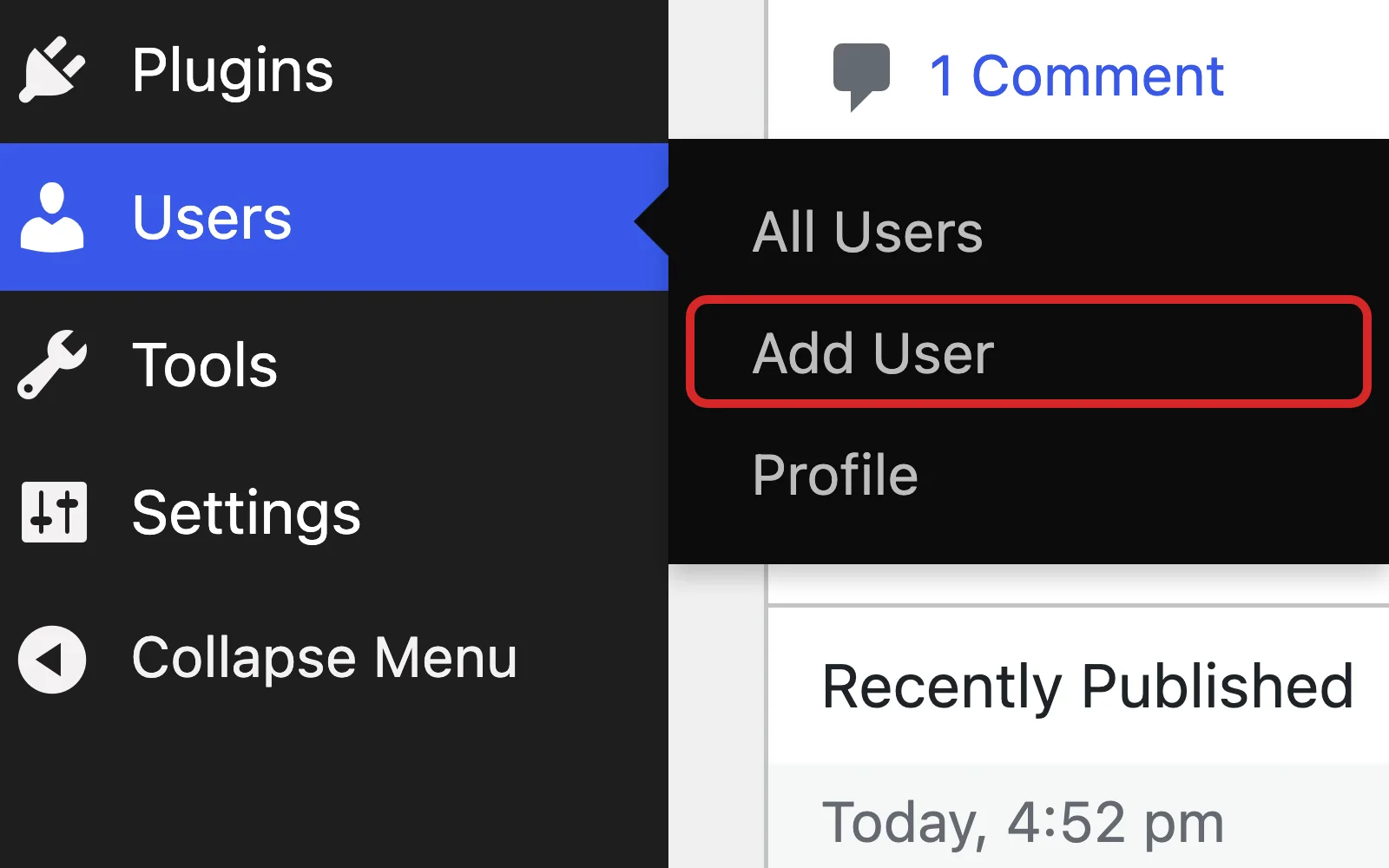
- In the left menu, hover over Users and click Add User.
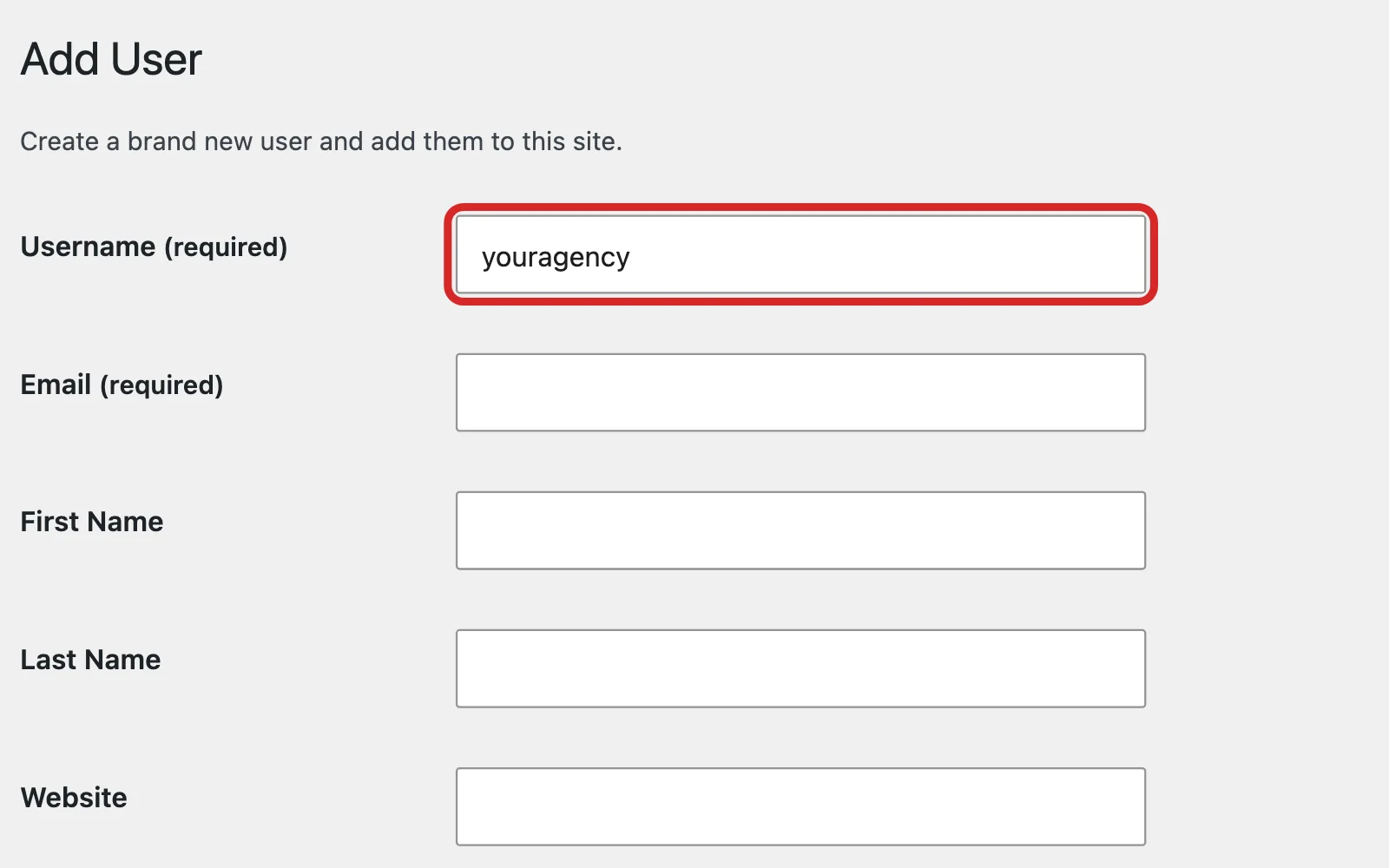
- Type a Username for the new person. It can't be changed later.
- Type the email address your agency gave you in Email.
- Leave the Password that WordPress filled in. The new user sets their own.
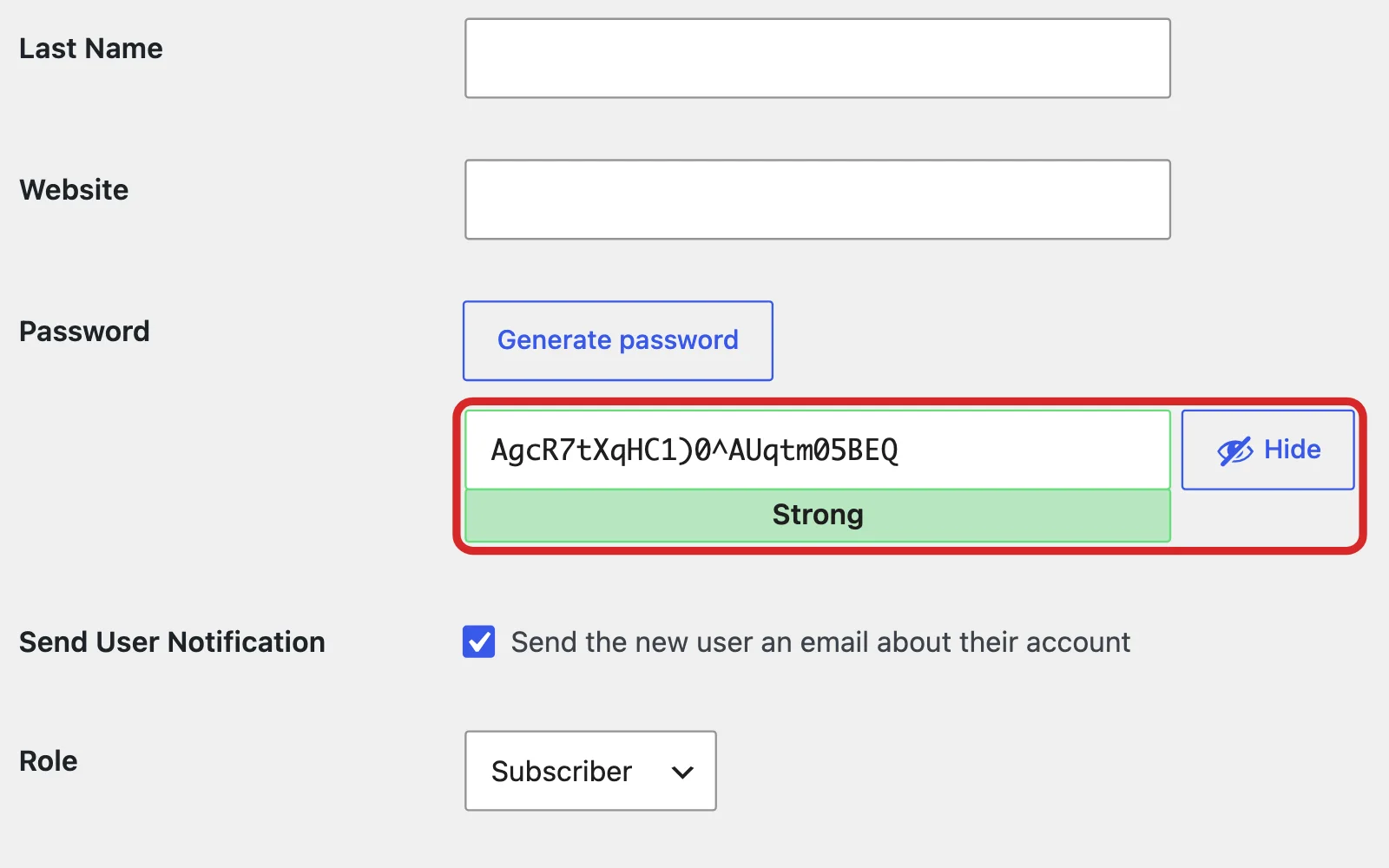
- Tick the box next to Send User Notification if it isn't ticked.
- Open the Role menu and choose Administrator.
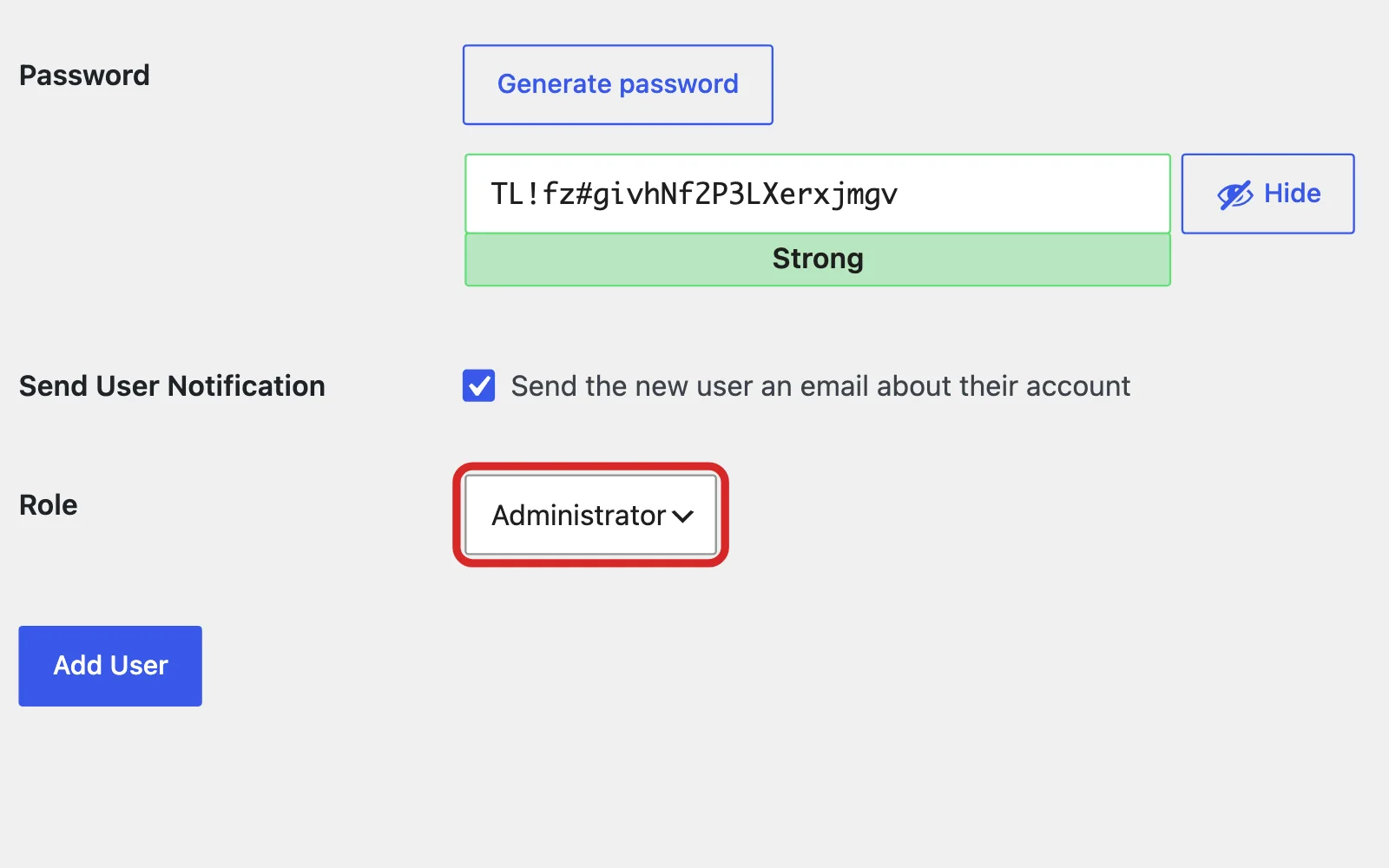
- Click the Add User button at the bottom of the screen.
Which WordPress role should you choose?
Choose Administrator for an agency that builds or looks after your site. Give people who only write or edit content a lower role.
| Role | What it can do |
|---|---|
| Administrator | Everything in the dashboard, including plugins, themes, settings and users |
| Editor | Publish and manage all posts, including other people's |
| Author | Publish and manage their own posts |
| Contributor | Write and manage their own posts, but not publish them |
| Subscriber | Manage their own profile only |
How do you remove or downgrade a user later?
Change a role or delete a user from Users > All Users.
Change a role
- Go to Users > All Users and click the person's username.
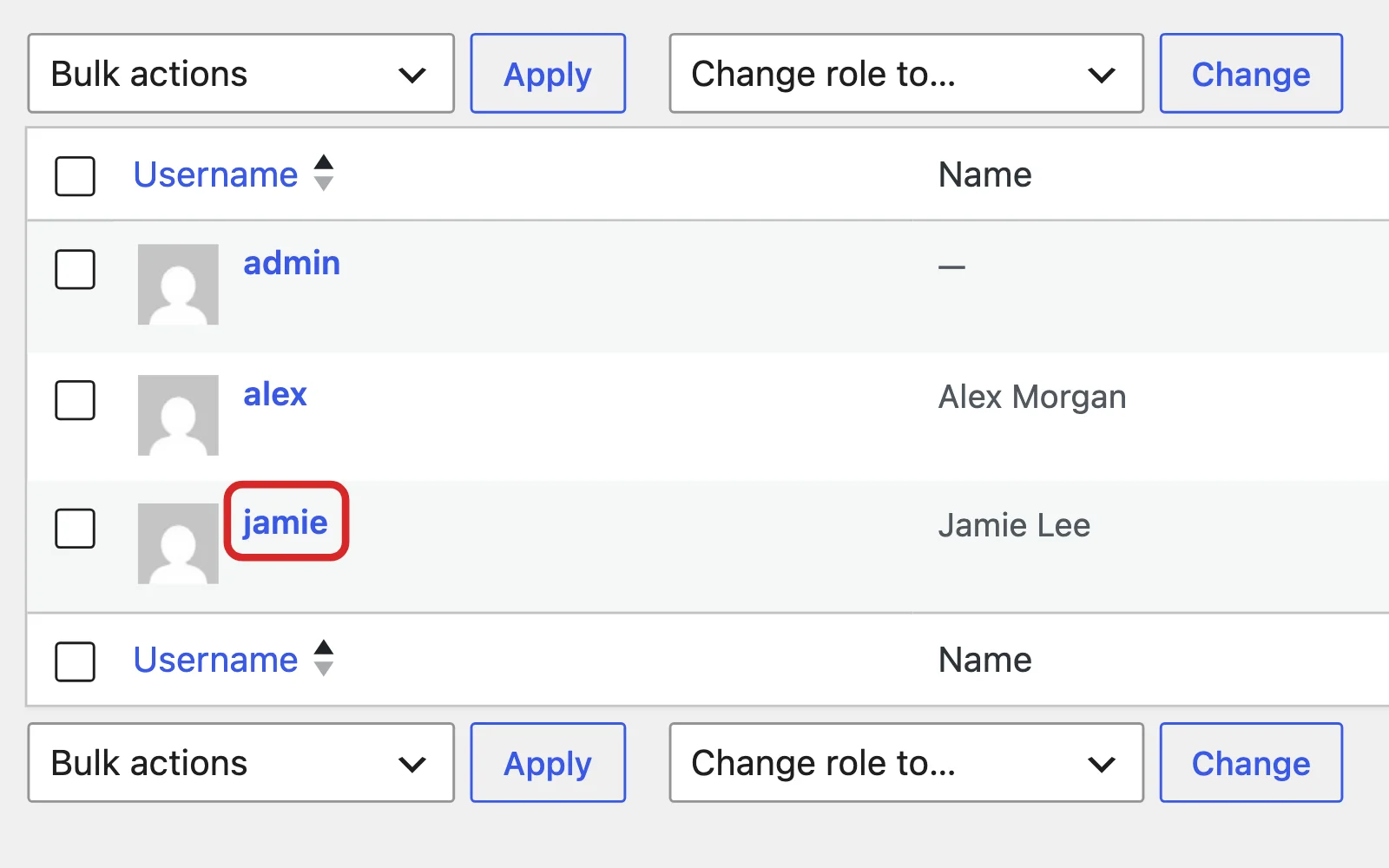
- Choose a new Role.
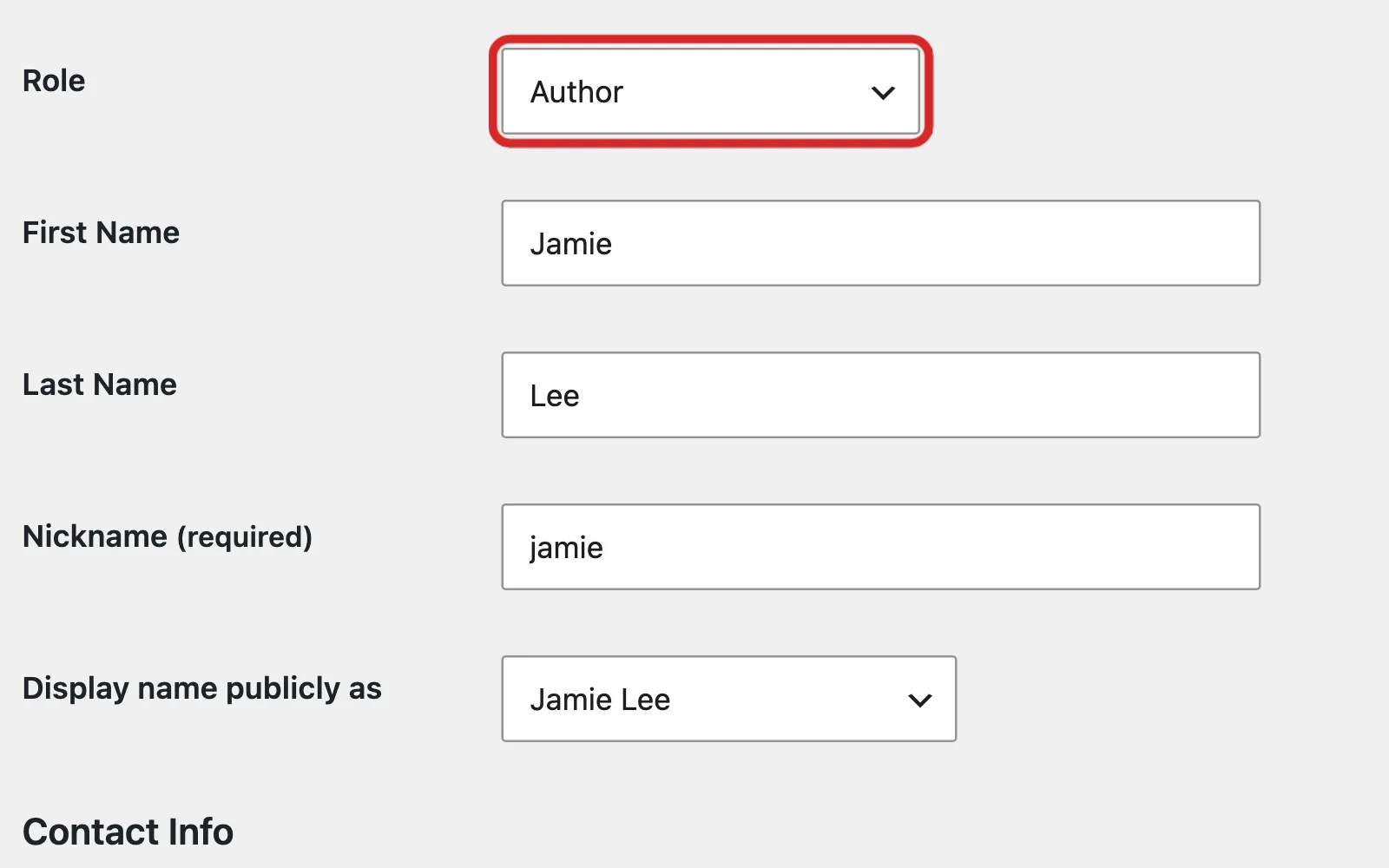
- Click Update User.
Remove a user
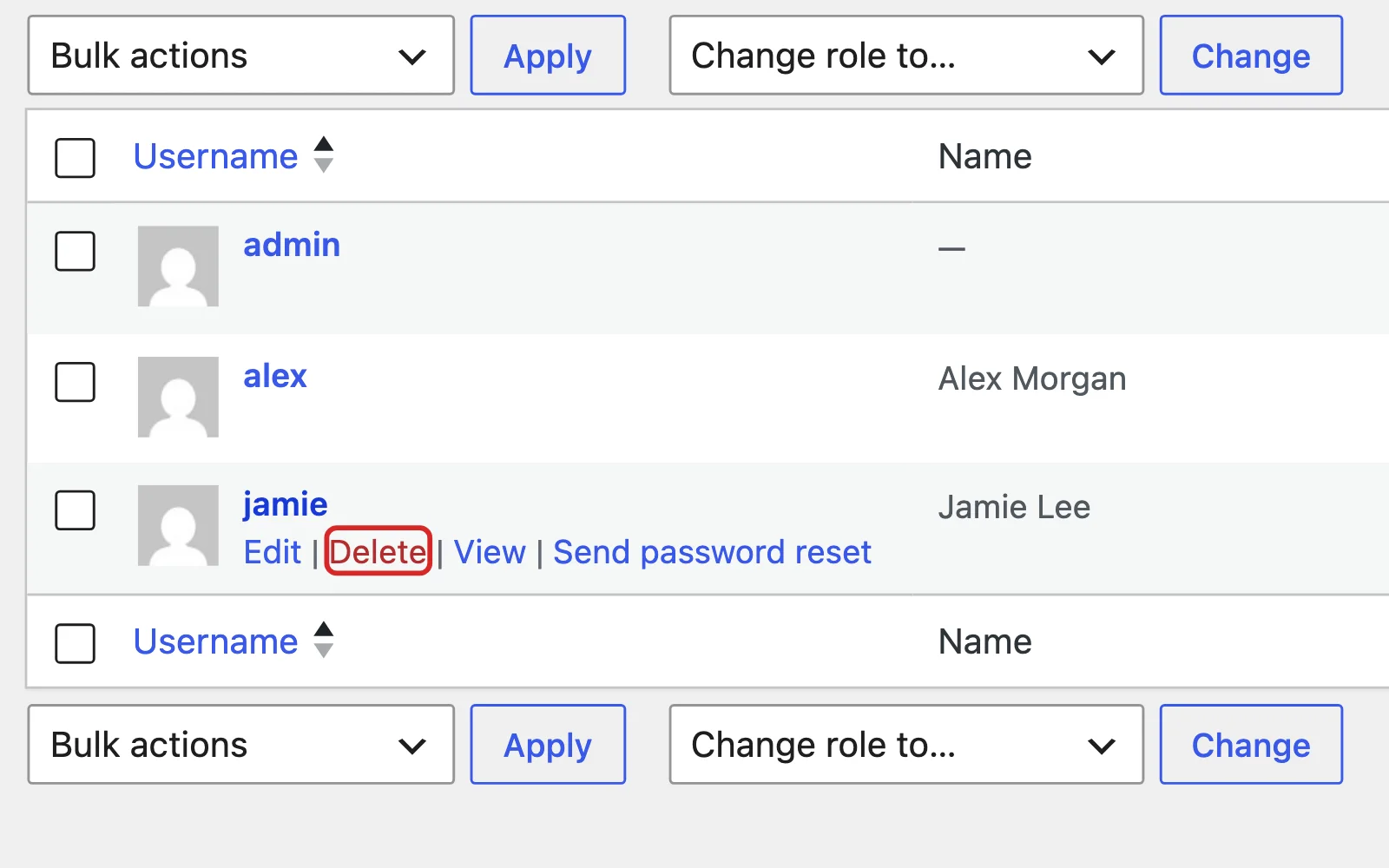
- Hover over the person's username in Users > All Users and click Delete.
- Choose Attribute all content to another user and pick your own name, so their posts stay on the site.
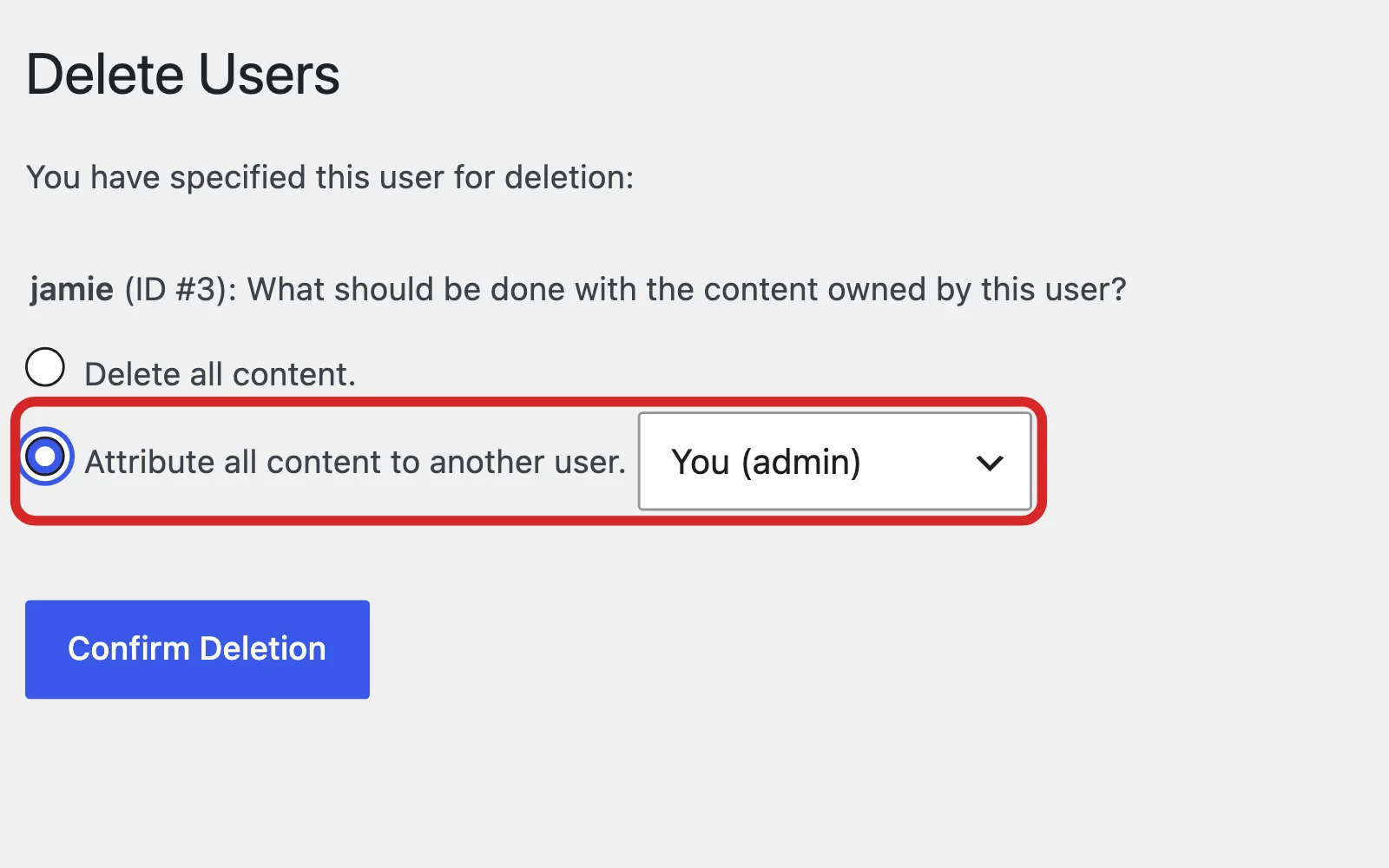
- Click Confirm Deletion.
What if you can't log in to WordPress?
Click Lost your password? on your login page and enter your username or email address. WordPress emails you a way back in. If that email address no longer works, another Administrator can set a new password for you.
If nobody can log in, the other reset methods need your hosting account. Our guide to finding out who hosts your website shows where to start. If you see Profile instead of Users, ask whoever set up the site to make you an Administrator.
Frequently Asked Questions
What does the new WordPress user receive?
An email with a link to set their own password, so you never send one. After that, they usually log in at your web address followed by /wp-login.php.
Can I add a WordPress user without an email address?
No. Email is a required field, and each user on a site needs a different email address.
What if my site is on WordPress.com?
WordPress.com invites people differently. Go to Users > All Users, open the Team tab and click Add a team member. WordPress.com's guide to inviting users has the full steps.
Keep going
Related Guides
Giving Access
How to Add a User to Google Analytics
Last checked
Give your agency or a team member their own access to your Google Analytics data, without sharing your password.
Read the guideGiving Access
How to Add a User to Google Search Console
Last checked
Give your agency access to your Search Console data in a few minutes, without sharing your Google password.
Read the guideWebsites & Hosting
Who Hosts My Website? How to Find Out
Last checked
Find the company that keeps your website online, even if the person who set it up has moved on.
Read the guide
Questions About Your Website?
If the site needs work once your agency is in, see our web design page or get in touch.
Sources
Steps last checked against these pages on .
- WordPress core source code (7.1 branch): admin menu labels (checked Nov 12, 2026)
- WordPress core source code (7.1 branch): Add User screen and help text (checked Nov 12, 2026)
- WordPress core source code (7.1 branch): Users list and Delete Users screen (checked Nov 13, 2026)
- WordPress.org documentation: Roles and Capabilities (checked Nov 12, 2026)
- WordPress.org documentation: Users screen (checked Nov 12, 2026)
- WordPress.org documentation: Users Add New screen (checked Nov 12, 2026)
- Learn WordPress: User Management (checked Nov 12, 2026)
- WordPress.org documentation: Reset your password (checked Nov 12, 2026)
- WordPress.com Support: Invite users to your site (checked Nov 12, 2026)